
Using Git Bash with Multiple GitHub Accounts using SSH Keys
Photo by Roman Synkevych on Unsplash
Introduction: If you’re new to the world of version control and collaborating on GitHub, you might be wondering how to handle multiple GitHub accounts on the same computer efficiently. Fortunately, with a simple setup using SSH keys, you can seamlessly switch between different GitHub accounts without the hassle of logging in and out repeatedly. In this beginner-friendly guide, we’ll walk you through the step-by-step process of configuring Git Bash to work with two GitHub accounts using SSH keys.
Step 1: Generating SSH Keys
SSH keys are secure cryptographic keys that allow you to authenticate with GitHub without the need for a username and password. Let’s generate SSH keys for each of your GitHub accounts:
1. Open Git Bash: First, launch Git Bash on your computer. If you haven’t installed Git Bash yet, you can download it from the official Git website and install it following the installation wizard.
2. Generate SSH Keys: In the Git Bash terminal, type the following commands, replacing <Email_1> and <Email_2 with the email addresses associated with your GitHub accounts:
For Account 1:
ssh-keygen -t ed25519 -C “<EMAIL_1>”
For Account 2:
ssh-keygen -t ed25519 -C “<EMAIL_2>”
Press Enter to run the command. You will be prompted to save the keys in the default location (~/.ssh/) with filenames like id_ed25519 and id_ed25519.pub.
Step 2: Adding SSH Keys to GitHub
To use your newly generated SSH keys for authentication on GitHub, you need to add them to your GitHub accounts:
1. Copy the Public Key: Run the following commands in Git Bash to copy the public keys for each GitHub account:
For Account 1:
clip < ~/.ssh/id_ed25519.pub
For Account 2:
clip < ~/.ssh/id_ed25519.pub
The public keys are now copied to your clipboard.
2. Adding Keys to GitHub: Log in to your GitHub Account 1 in your web browser. Then, go to “Settings” -> “SSH and GPG keys” -> “New SSH key” and paste the key you copied earlier.
3. Repeat the above step for Account 2, but this time, log in to your GitHub Account 2.
Step 3: Configuring SSH for Multiple Accounts
Next, we need to configure SSH to differentiate between the two GitHub accounts. We’ll create or edit the SSH configuration file to accomplish this:
1. Create the Configuration File: In Git Bash, type the following command to create the SSH configuration file (if it doesn’t exist):
touch ~/.ssh/config
2. Edit the Configuration File: Open the configuration file using a text editor. We’ll use the Nano editor for this example:
nano ~/.ssh/config
Add the following lines to the configuration file, replacing Email_1 and Email_2 with the corresponding email addresses used to generate the keys:
# Account 1
Host github.com
HostName github.com
User git
IdentityFile ~/.ssh/id_ed25519
# Account 2
Host github.com-acc2
HostName github.com
User git
IdentityFile ~/.ssh/id_ed25519.pub
Save and exit the text editor (for Nano, press `Ctrl+O`, then `Ctrl+X`).
Step 4: Configuring Repository URLs
Finally, to complete the setup, we need to adjust the remote URLs of the repositories associated with each GitHub account:
- For Account 1’s repositories, run the following command, replacing `username` with your Account 1 GitHub username and `repo` with the repository name:
git remote set-url origin [email protected]:username/repo.git
2. For Account 2’s repositories, run the following command, replacing username with your Account 2 GitHub username and repo with the repository name:
git remote set-url origin [email protected]:username/repo.git
Conclusion:
Congratulations! You have successfully set up Git Bash to work with two GitHub accounts using SSH keys. Now, you can seamlessly switch between your accounts without any hassle, making version control and collaboration a breeze. As you continue your journey with Git and GitHub, this setup will empower you to work efficiently and securely with multiple accounts simultaneously. Happy coding!

> Written by
Emdadul Islam
Software Engineer. View profile →
Read more

How to Deploy an AI Agent with Amazon Bedrock AgentCore
Deploy AI agents with Amazon Bedrock AgentCore for scalable configuration on AWS, integrating with frameworks like LangGraph and CrewAI
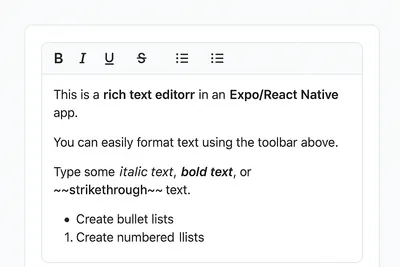
How to Add a Native Rich Text Editor in Expo / React Native (No WebView)
Use expo-rte for a native rich text editor in Expo/React Native, offering cross-platform, customizable, native performance without WebView
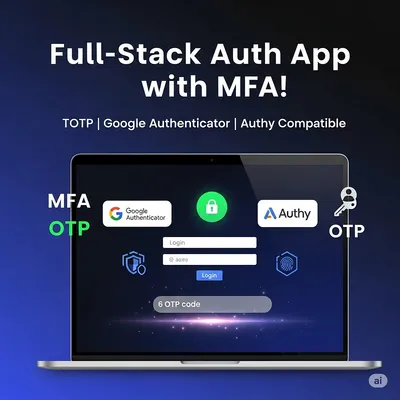
How to Implement Multi-Factor Authentication (MFA) with TOTP in Your Web Application
Learn to implement Multi-Factor Authentication (MFA) with Time-based One-Time Password (TOTP) in your web application for enhanced security