Resolving “Window is not defined” Error during npm run build in Next.js SSR Application

Window is not defined solution
Background
Our development team encountered a critical issue while running the npm run build command in a Next.js server-side rendered (SSR) application. The error message indicated that "window is not defined," pointing to a problem related to server-side rendering.
Problem Statement
When attempting to build the project using the npm script for production (npm run build), the build process failed with an error that specifically mentioned the absence of the "window" object. This issue is common in Next.js applications that utilize server-side rendering, as certain components may attempt to access the "window" object, which is not available on the server side.
Investigation
To identify the root cause of the problem, our development team thoroughly examined the components and dependencies involved in the build process. It was determined that certain components were trying to access the “window” object directly, causing the build to fail.
Solution
To resolve the “window is not defined” error during the build process, we implemented the following solution:
1. Conditional Rendering
We modified the affected components to conditionally check whether the “window” object is defined before attempting to access it. This conditional rendering ensures that the problematic code is only executed on the client side, preventing errors during server-side rendering.
if (typeof window !== "undefined") {
  // Code that relies on the window object
  // ...
}
This simple check ensures that the code within the conditional block is only executed in a client-side context where the “window” object is available.
2. Dynamic Import with Next.js
To handle the SSR-related issues more gracefully, we leveraged Next.js dynamic imports with the ssr: false option. By doing this, we allowed specific components to be loaded dynamically on the client side, avoiding potential conflicts during server-side rendering.
import dynamic from 'next/dynamic';

const DynamicComponent = dynamic(() => import('../path/to/component'), {
  ssr: false,
});
This approach ensures that the designated component is only loaded on the client side, mitigating any issues related to the “window is not defined” error during the build process.
Results
Implementing the above solutions successfully resolved the “window is not defined” error during the npm run build command in our Next.js SSR application. The build process now completes without any issues, and the application functions as expected in both development and production environments.
This case study highlights the importance of understanding the nuances of server-side rendering in Next.js applications and provides a practical solution for mitigating common challenges associated with the “window is not defined” error during the build process.

> Written by
Emdadul Islam
Software Engineer. View profile →
Read more

How to Deploy an AI Agent with Amazon Bedrock AgentCore
Deploy AI agents with Amazon Bedrock AgentCore for scalable configuration on AWS, integrating with frameworks like LangGraph and CrewAI
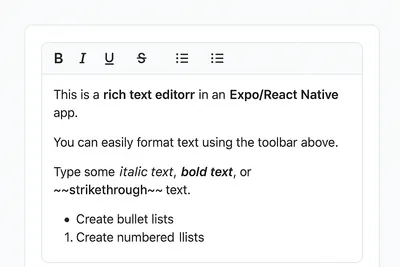
How to Add a Native Rich Text Editor in Expo / React Native (No WebView)
Use expo-rte for a native rich text editor in Expo/React Native, offering cross-platform, customizable, native performance without WebView

How to Implement Multi-Factor Authentication (MFA) with TOTP in Your Web Application
Learn to implement Multi-Factor Authentication (MFA) with Time-based One-Time Password (TOTP) in your web application for enhanced security